
Airmid – The SystmOnline App
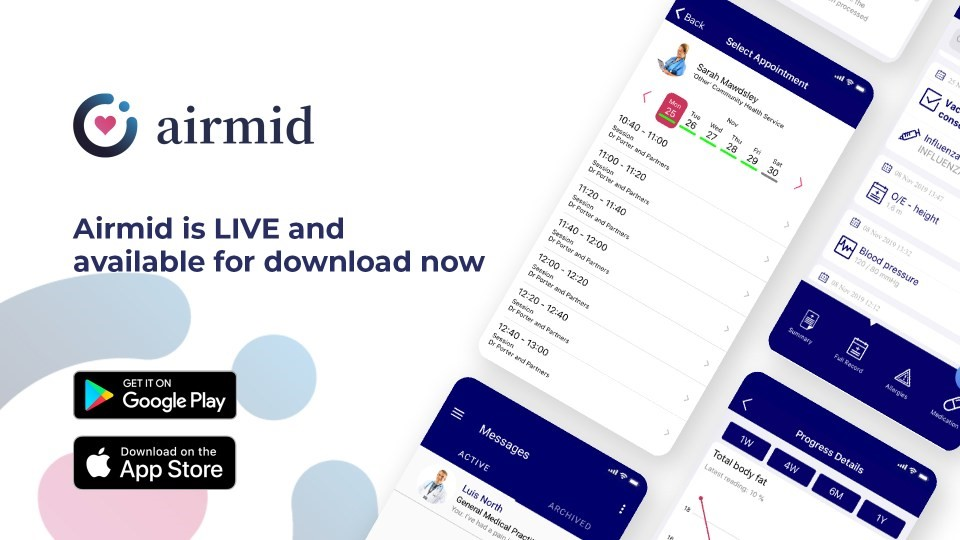
Airmid is the new patient-facing app to support your healthcare needs and engage with your care team, including Covid passports, requesting repeat prescriptions, booking appointments, etc. Some of the online services you will have access to:
- Book and manage appointments with reminders
- Request repeat medication
- Message medical professionals without the need for a face to face appointment – use video and direct messaging
- View and add to your medical record
- Give family members or carers access to your record where necessary
- Find nearby clinics
- Check your symptoms
- Fingerprint Authentication
- Use Airmid for your child as an online eRedbook
- Import data from medical devices and wearables e.g. Apple Health and Google Fit
How to Register and Use Airmid:
For patients who already have online access, you can use your SystmOnline login or NHS App login details. If you do not have online access you can create an NHS Login to use Airmid.
How to Register on Airmid Using an NHS Login
Online access and logging on to Airmid
Patients already with online access
For patients who already have online access, you will have an NHS login or SystmOnline login, these can be used to log in to Airmid.
Patients without online access
If you do not have online access, first download the Airmid App and open it. On the login screen you can create an NHS login via Airmid by pressing on the NHS login button.
Below are some step by step instructions the surgery has put together to try and make the sign up process easier for patients. For the latest instructions or if you have any questions about using the Airmid App or setting up an NHS login, contact Airmid or NHS Digital for help and assistance.
Please do not contact the Surgery for advice about these apps
How do I set up an NHS login for Airmid?
To use the Airmid App and gain access to your health record or personal information, you must be verified to the highest level, which involves proving who you are. The easiest way is to create an NHS login and complete an online identity verification process, where you will be asked to submit a photo of your I.D. and a short recording of with your face. A physical comparison will be made between you and your chosen photo I.D.
To get started, please follow the instructions below.
When you click on the blue button “Continue with NHS login”, you will be directed out to the NHS site and asked to provide you email address. You will then be prompted to confirm you want to register with Airmid:
On the next screen you will asked to provide a password. You will then receive an email containing a 6-digit code. You will be prompted to enter this code and press continue.
After submitting this code you will then be asked to give your mobile phone number. A six-digit security code will be sent by text message to your mobile phone. You will be prompted to enter this code and press continue and wait for your details to be checked.
You now have an NHS login with a verified email address and phone number. This is low level proof of who you are. However, to use the Airmid app you must verify your identity to a high level. You will be prompted to press continue.
You will be asked to submit a photo of your ID and then take an automated scan of your face. Instructions will be given on how to do this using the camera on your device. The scan will then be used to match your face with your photo ID.
It will ask you to submit other forms of I.D. The accepted types of photo ID are:
- Passport
- UK driving licence (full or provisional)
- UK residence card or biometric residence permit
- European driving licence (full)
- European national identity card
Take a clear photograph (with all four corners visible) and upload it. You will be asked to check you photo: can you see all four corners and have you covered any of it with your fingers. If you are happy with the image, you will be prompted to press continue.
Next it will ask you to make a short recording of your face with you saying four specific numbers, so that the NHS can verify your face and the ID.
To do this you can:
- say the numbers (as in the screenshots below)
- sign the numbers using British Sign Language
- write the numbers down and show them
Make sure you are using the camera in the phone that faces you. If you are satisfied with the recording press the tick, otherwise press the cross and try again. Before you can continue, you will need to replay the video to check that you see all your face and hear the numbers clearly. If not, record the video again. Once you are happy with recording, click the continue button.
Your identity will then be carefully checked by our ID checking team and can take up to 24 hours to be verified. This can be longer at busy times. You will be emailed to let you know if the ID check has been successful. You can then log back into Airmid and complete the process.
Once you have submitted all the I.D. information, you then supply some personal details. It will start by asking you for your NHS number (but you can skip this stage because you do not need your NHS number to complete the login process).
You will then enter your name, date of birth and postcode:
The NHS App will check your details and find your record. You must then confirm the information is correct. Once you submit this information, you will agree to the sharing your login details with Airmid. The process is now complete.
Upon logging in via the NHS login you will be redirected back to the Airmid app and log you in. You can set up fingerprint authentication as an extra level of security if your device supports it.
Is there a guide to help users?
- When you visit screens for the first time tips will appear to help you navigate
- Patients can also access help files from the app
- Airmid has a very helpful FAQs section and YouTube channel
Get the app


NHS App
Try the NHS App. If you’re a patient at our practice you can now use the new NHS App, a simple and secure way to access a range of NHS services on your smartphone or tablet. You can use the NHS App to get health advice, order repeat prescriptions, manage your hospital referrals, view your GP health record and more. If you already use Patient Access you can continue to use it but you can use the NHS App as well. For more information go to www.nhs.uk/nhsapp.
What the NHS App does
- get advice about coronavirus – get information about coronavirus and find out what to do if you think you have it.
- order repeat prescriptions – see your available medicines, request a new repeat prescription and choose a pharmacy for your prescriptions to be sent to.
- book appointments – search for, book and cancel appointments at your GP surgery, and see details of your upcoming and past appointments.
- check your symptoms – search trusted NHS information and advice on hundreds of conditions and treatments, and get instant advice or medical help near you.
- register your organ donation decision – choose to donate some or all of your organs and check your registered decision.
- find out how the NHS uses your data – choose if data from your health records is shared for research and planning.
- view parts of your GP record – including information about medication, allergies, vaccinations, previous illnesses and test results.
If you’re a patient at our practice you can use the new NHS App, a simple and secure way to access a range of NHS services on your smartphone or tablet.
Get the app


Non-urgent advice: Having Problems?

You can still contact the practice by phone or in person, this is just another option, which other patients have found is more convenient and saves them time. More information including “how to” leaflets and videos of patients and why they are using GP online services are available at www.nhs.uk/gponlineservices
Online Consultation

SystmOnline
Online services allow you to:
- order repeat prescriptions
- see parts of your health record, including information about medicines, vaccinations and test results
- see communications between your GP surgery and other services, such as hospitals
How to register for Online Services
If you have not used our online services before you will need to:
- Contact the surgery by phone or in person
- Verify your identity
- Secure a username and password
- Enter SystmOnline and enter your registration details exactly as shown on the form.
- After registering, log on with your username and password.